

Every teacher who has marked a stack of papers the night before grades are due knows the question: how do I create an online quiz that grades itself, instead of spending the weekend with a red pen? One class of thirty students, four short tests per term, is over a hundred papers marked by hand every month — time that could have gone into preparing the lesson itself.
The good news: the tools exist, and some are free. The news no comparison page mentions: they all work well until the quiz reaches a math question — then every one of them hits a wall none was designed to cross. This guide reviews the options honestly, then deals with the math problem specifically.
The tools available for building an online quiz
| Tool | Cost | Auto-grading | Where it actually stops |
|---|---|---|---|
| Google Forms | Free | Multiple choice and short answers | Literal text matching only |
| Microsoft Forms | Free with an account | Similar to Google Forms | Same text-matching limits |
| Porsline | Limited free tier, then paid | Good for contests and surveys | Not built for school curricula |
| Canva | Limited free tier | No grading — sheet design only | A pretty paper, nothing marked |
| Jotform | Limited free tier | Ready-made quiz templates | English-first interface |
For most theory subjects, Google Forms is genuinely enough: multiple choice, true/false, an answer key, and the score reaches the student the moment they submit. If all your questions are of that kind, you need nothing more — that is our honest assessment.
Where every one of these tools stops: math questions
Try writing a single question containing a fraction or a square root in any tool from the table above, and you will hit three walls in a row:
1. Writing the equation at all
Neither Google Forms nor Microsoft Forms has an equation editor. Teachers work around it by typing x^2 and sqrt(x+1) as plain text, or by screenshotting the equation from Word and pasting it as an image — and both make the question harder to read than the paper original.
2. Auto-grading turns against you
This wall is the most dangerous because it is silent. Matching in these tools is literal text comparison: set the answer key to 0.5, and the student who writes 1/2 is marked wrong. The one who writes .5? Wrong. The one who uses a decimal comma, 0,5, as most of the French-taught world does? Wrong again. Three students who understood the lesson perfectly get zero on the question — and learn exactly one thing from the experience: guess the marker's spelling rather than solve the problem.
3. No paper version
An online quiz does not abolish paper in real schools: revision sheets get printed, in-class tests get handed out, homework gets photographed into the class group chat. A teacher who built their quiz in Google Forms rewrites it in Word from scratch the moment a printed copy is needed — double work, every single time.
The fix: write the question once, get both versions
These three walls are precisely what we built Minbar to cross — a course and quiz platform for the independent teacher that treats mathematics as a first-class subject:
Equations are written by pointing, not memorizing. A ready symbol palette — fraction, root, power, limit, integral, sequence — you click and the equation appears typeset in front of you, exactly as the student will see it, without knowing any math markup.
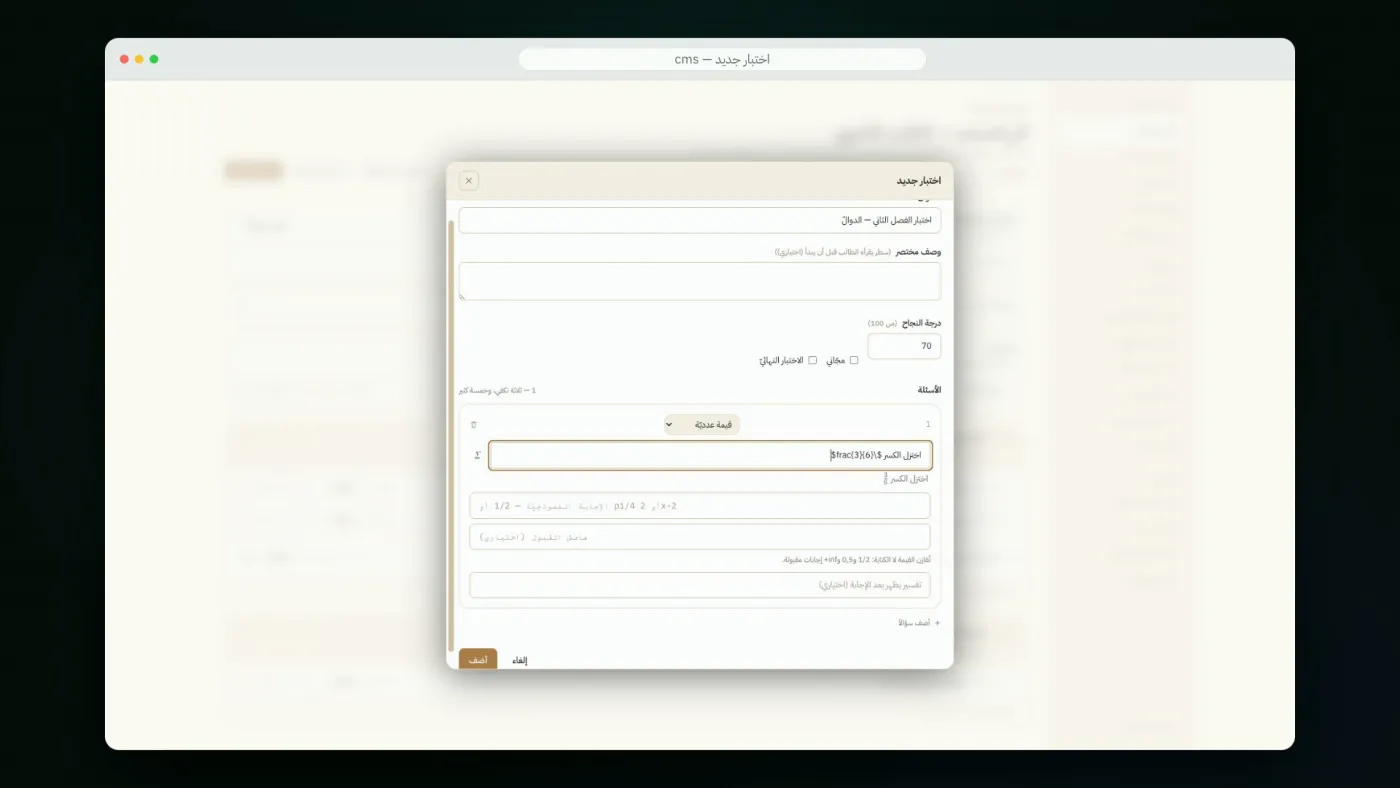 The editor as the teacher sees it: the fraction was inserted by clicking, and the preview shows it typeset before saving.
Grading understands math, not spelling. The answer key is compared by value, not by text: 0.5, 1/2 and ,5 are one correct answer. And on algebraic-expression questions, the student who writes 2(x-1) against a key of 2x-2 gets full marks — because the comparison is made on the function itself, not on how it happens to be written.
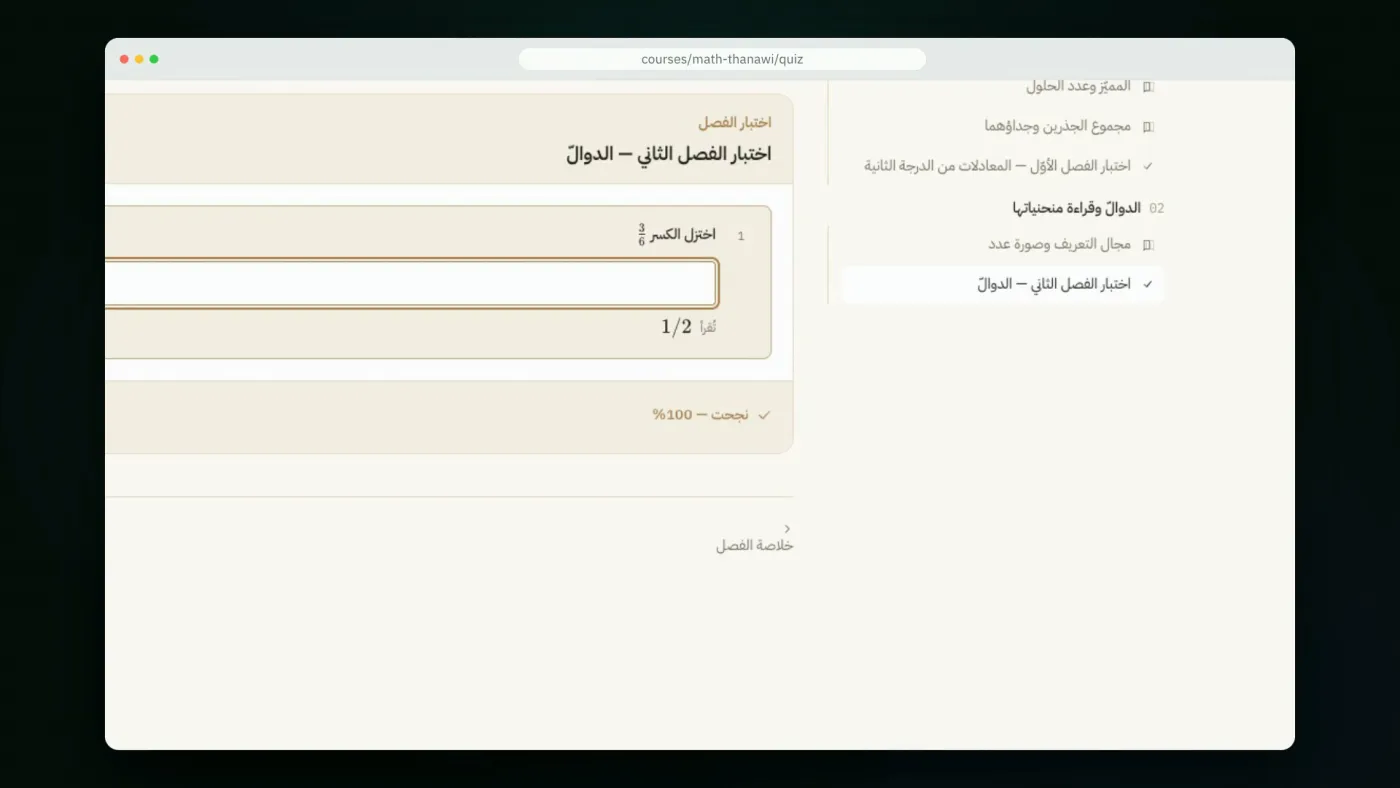 On the student side: they typed
 1/2 and saw it typeset before submitting — the same result as 0.5.
One button gives you the printed sheet. The same questions you built for the online quiz print as a classic exercise sheet: a header with your school and class, textbook-quality typeset equations, answer boxes, and an optional answer-key page for the teacher. Write once, hand out both ways — a link that marks itself, and a paper that goes through the photocopier.
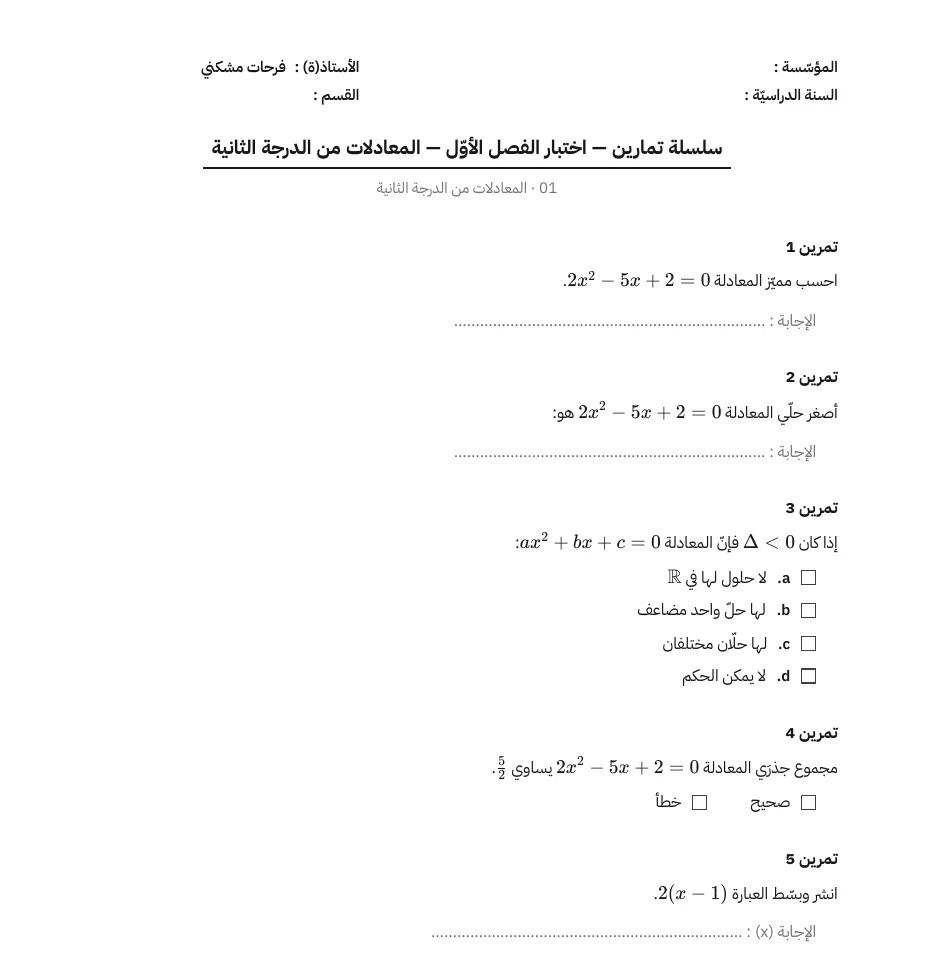 The same quiz questions, printed as an exercise sheet with the school header.
You can try the result as a student right now in the complete demo math course: create a free account, open any chapter quiz, answer once with 1/2 and once with 0.5, and watch the platform recognize them as the same answer.
Building the quiz in Minbar, step by step
- From the dashboard, open the course, then the chapter, and choose "Add a quiz".
- Write the question and pick its type: multiple choice, true/false, numeric answer, or algebraic expression.
- Insert equations from the symbol palette — click the fraction, fill the numerator and denominator.
- On numeric questions, set a tolerance when the answer is approximate ("to two decimal places").
- Share the quiz link with your students — or click the print icon and get the paper sheet with the same questions.
Scores are recorded the moment a student submits, and students see their expression typeset as they type it, so nobody submits an answer they did not mean.
Your platform, not an account on someone else's
The essential difference between Minbar and signing up to the well-known tutoring marketplaces is that Minbar is a platform carrying your name: your domain, your logo, your students, your prices — with no percentage skimmed off every lesson. We have written before about teacher-platform fees and how to work out the real cut before signing with any middleman.
If you teach math or science and are considering moving your quizzes and courses online, write to us and we will set up your platform — deployed under your name, your existing material migrated in, with content and students remaining yours alone.