

In part 3 you created an agent, gave it facts and checked its answers in a small test window. That proves the agent works. It does not tell you how to keep an eye on it once it is doing real work.
That is the dashboard's job. In this part you follow one task from start to finish through four pages: you post it on the Hub, watch it run on Live, find it afterwards in Activity, and read what Monitor thinks still needs you.
This is part 5 of AgentX in practice, a series of short guides where each part gets one thing working.
What you get at the end
- A task you gave an agent from the dashboard, with its answer.
- That task seen on each of the four pages, so you know which page answers which question.
- One item on Monitor dealt with and cleared.
| Question | Page |
|---|---|
| What did I ask, and what was the answer? | Hub |
| What is running right now? | Live |
| What ran, and how did it end? | Activity |
| What still needs a person? | Monitor |
AgentX is part of Noqta's products program and it is still experimental. On this version you will meet two rough edges, in steps 3 and 8. Both have a fix that takes a few seconds.
Prerequisites
- AgentX with one working agent, from part 3: an agent on Claude Code with a few facts in its
CLAUDE.mdfile. - AgentX 0.206.0 or later. Check with
agentx --version. Older versions have a different dashboard, with a bar of tabs at the top instead of a menu on the left. To update, run the install command from part 2 again. - A browser and a terminal.
How we ran it. As in the earlier parts, we ran everything in a clean, separate home folder on a Mac that already runs another AgentX. The test daemon used port 19021 and the dashboard port 19031. Yours will show the defaults: 18800 and 4202. We named our computer my-laptop and shortened folder paths. Our test agent was the starter agent Assistant, with the same opening-hours facts as part 3's Support. If you followed part 3, send your task to @support.
Step 1: Start the daemon and the dashboard
The daemon is AgentX's background service; it runs the agents. The dashboard is a separate small website that shows what the daemon is doing. From your my-agentx folder, check the daemon:
agentx daemon status my-laptop (my-laptop)
Status: running — uptime 21s
AgentX 0.206.0 (6dac66d) node my-laptop
...
Agents:
Assistant (claude-code)
/Users/you/my-agentx/agents/assistant
Dashboard: http://127.0.0.1:4202If it says AgentX is stopped, run agentx daemon start --detach. Then start the dashboard in a second terminal and leave it open:
agentx board serveStep 2: Open the Hub
Open http://127.0.0.1:4202 in your browser. The Hub opens: it is the dashboard's home page.
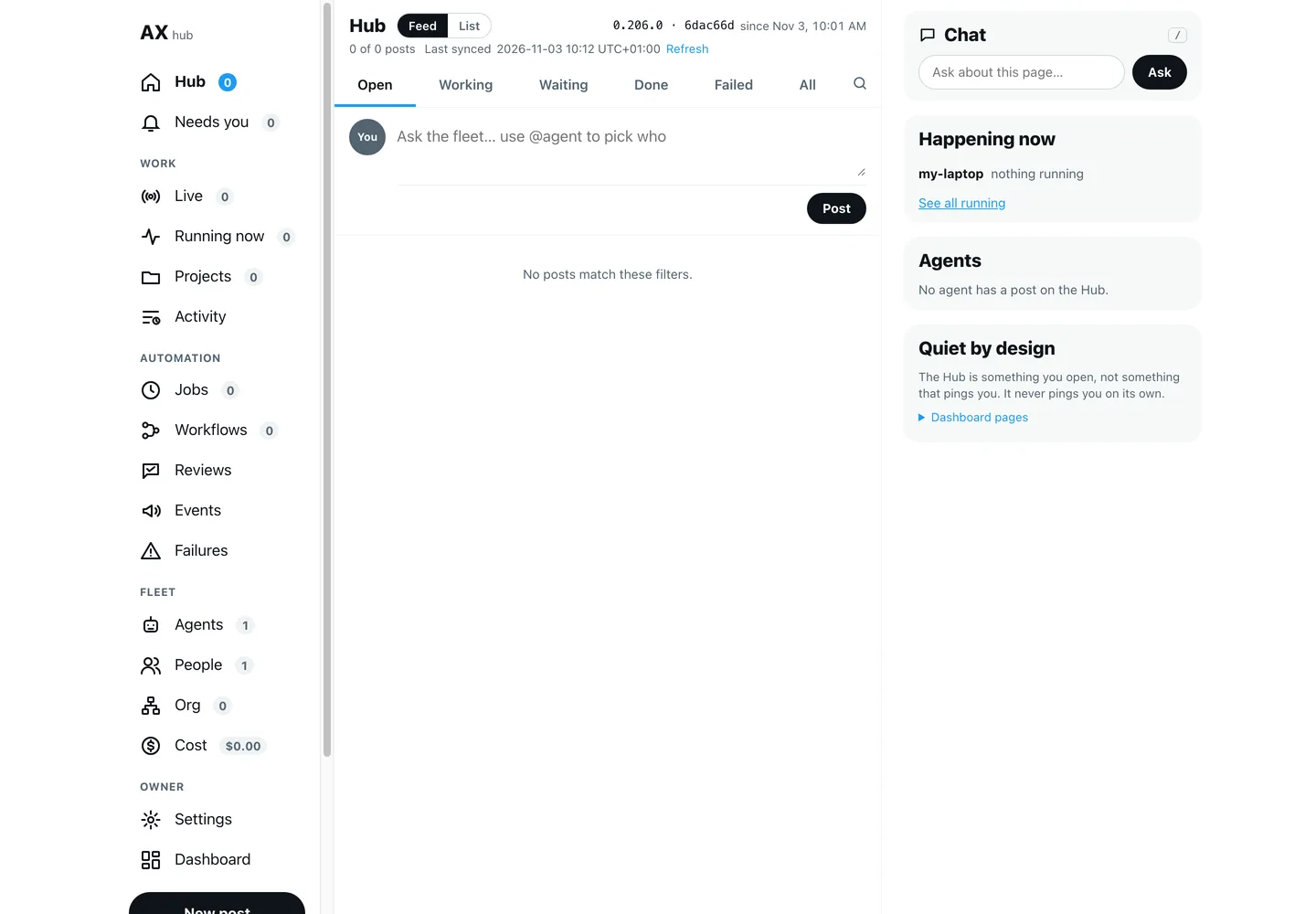
Three things to know about this screen:
- The menu on the left groups the pages: Work (Live, Running now, Projects, Activity), Automation, Fleet and Owner. The number next to a page counts what is on it.
- The middle is the feed. Every task someone gives an agent becomes a post here, with its answer underneath.
- Top right shows the version the daemon runs and since when. Ours reads
0.206.0 · 6dac66d since Nov 3, 10:01 AM. If it shows nothing, the dashboard cannot reach the daemon; go back to step 1.
The dashboard asks for no password on your own computer. Anyone who can use the computer can use it, so lock the screen when you step away.
Step 3: Turn on requests
Type a task in the box at the top of the feed, for example @support Are you open on Saturday?, and select Post. On a fresh install, this is what we got:
Not posted: Requests are off on this computer, so nothing would give the agent the post.A post on the Hub is a request: AgentX records it and follows it until it is done. That feature is off on a new install. Turn it on in agentx.json, at the top level, next to agents:
"requests": { "enabled": true },Save the file. You do not need to restart anything: we saved it while the daemon was running and the next post went through. The dashboard also has a switch for this under Settings › Requests; we did not test that route.
Step 4: Give your agent a task
Post the same task again. This time the box says:
Posted: Assistant gets it within a minute, and its answer shows on the post.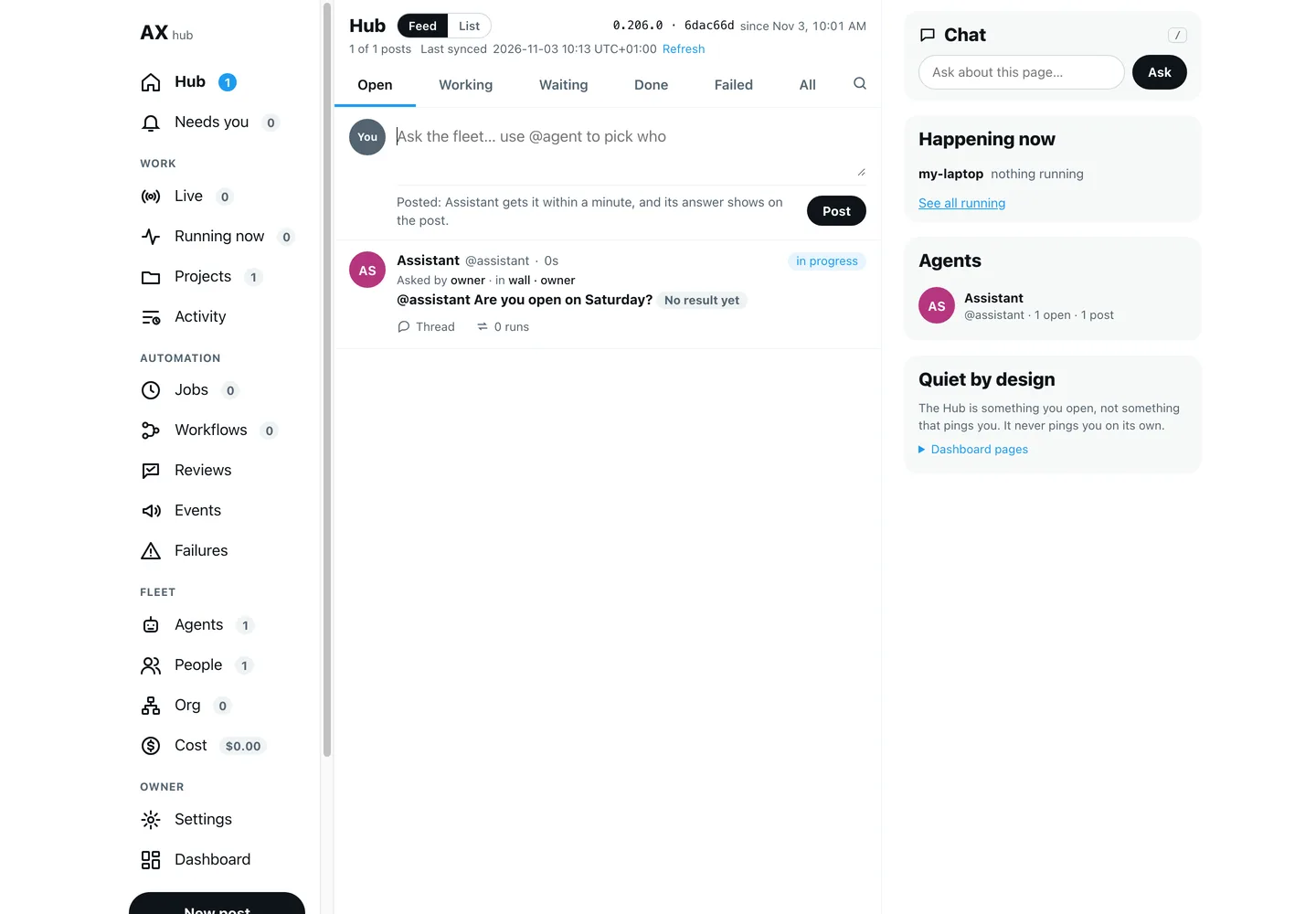
The @ name decides which agent gets the task. The post appears straight away, marked in progress and No result yet.
Step 5: Watch it run on Live
Select Live in the menu. Live answers one question: what is running right now? It refreshes every two seconds while it is open.
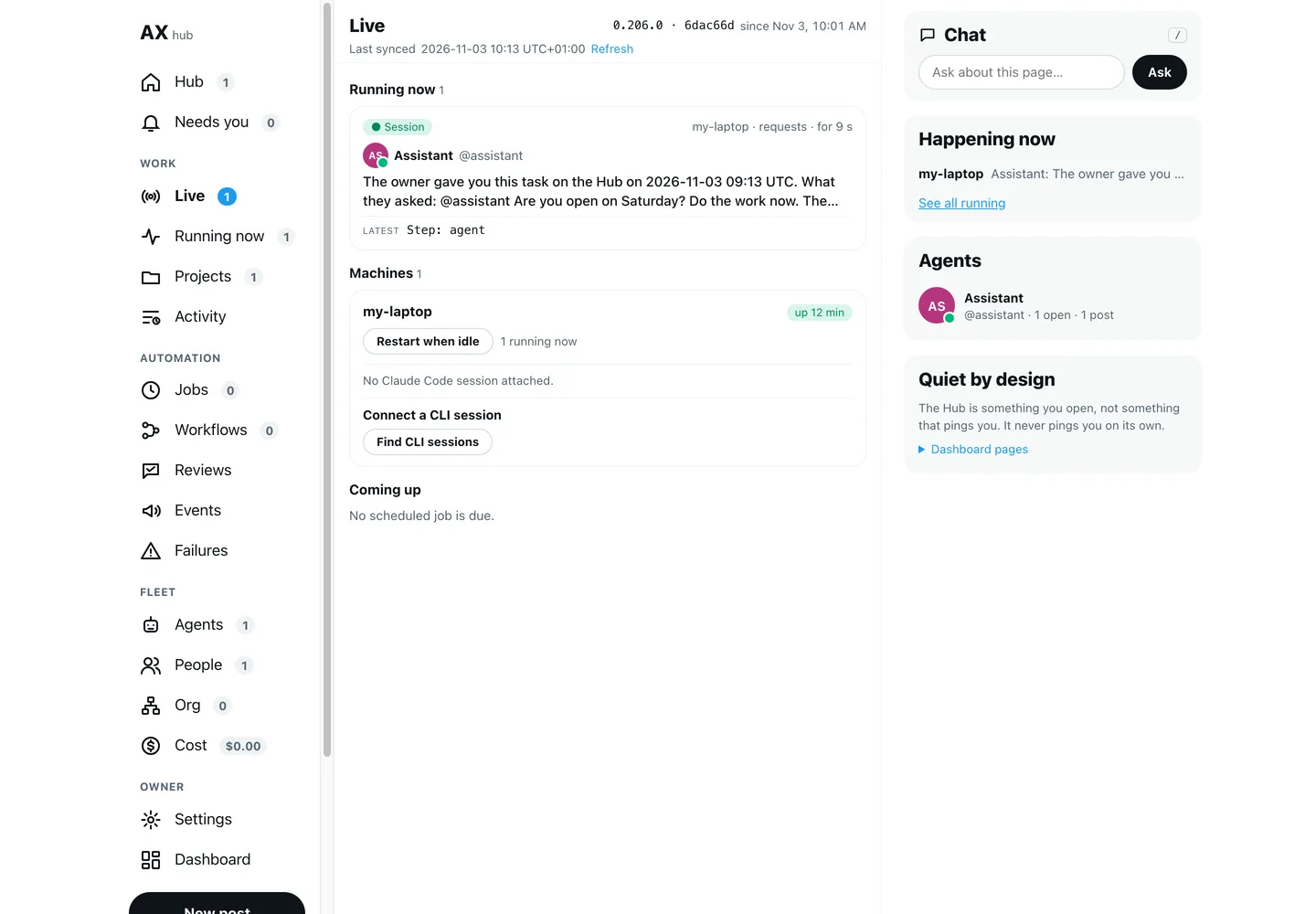
Under Running now, each card is one task in progress. Ours read my-laptop · requests · for 9 s, with the agent's name and what it was asked. Latest shows the last thing it did. Select the card to open the task and watch it as it happens.
Under Machines there is one card per computer that runs AgentX, with how many tasks run on it. Leave Restart when idle alone for now. It only works when a service manager (launchd on a Mac, systemd on Linux) starts AgentX again after it stops, and an AgentX started from a terminal, as ours was, has none. Part 9 covers safe restarts.
Our task finished in under ten seconds, so you may need to post and switch to Live quickly to catch it. Once it ends, the card goes away and Live shows Running now 0.
Step 6: Read the answer on the Hub
Go back to Hub. The answer is on the post:
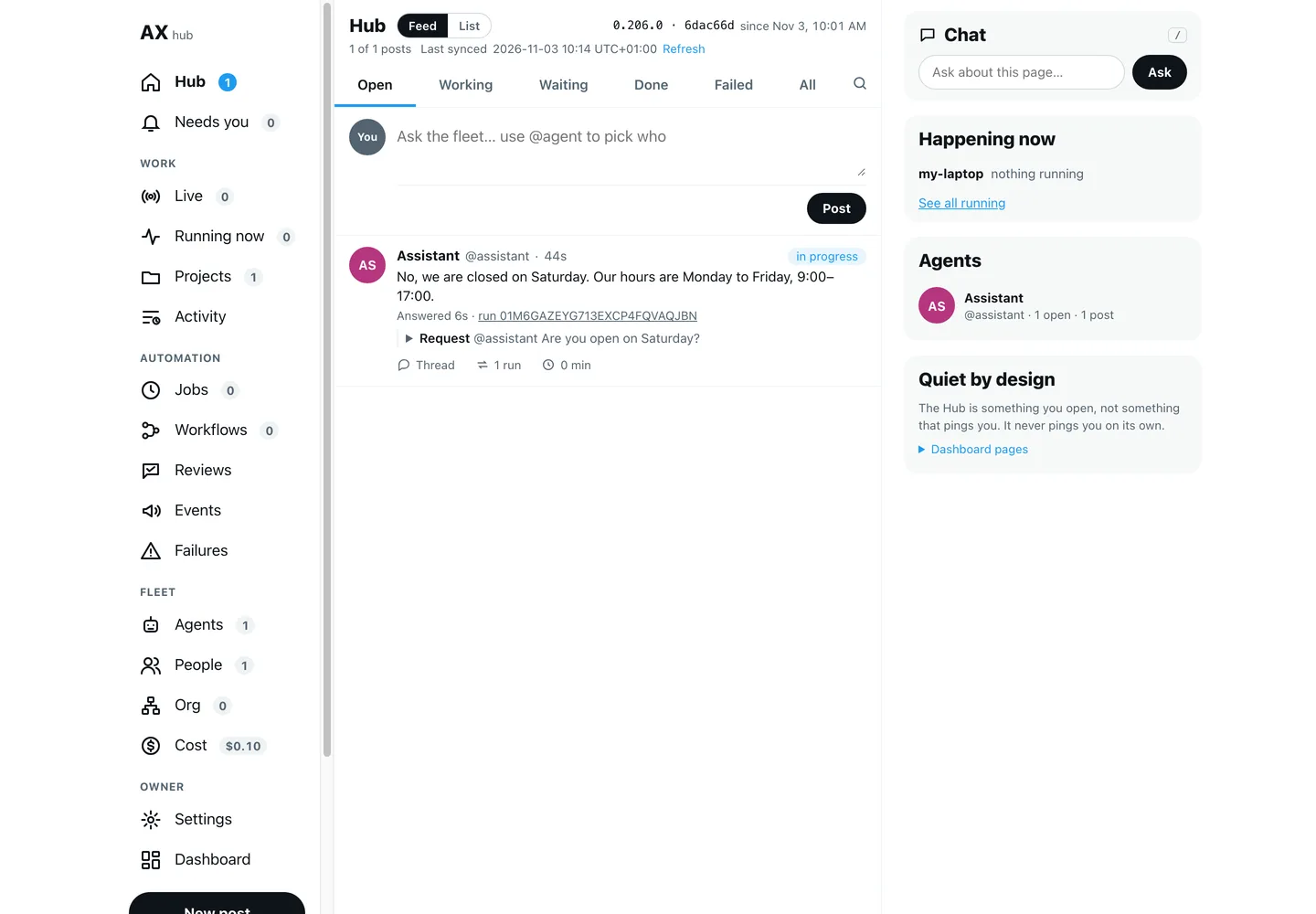
No, we are closed on Saturday. Our hours are Monday to Friday, 9:00–17:00.The answer came from the facts in the agent's CLAUDE.md, as in part 3. Select Thread to read the whole exchange.
On 0.206.0 the post stayed marked in progress after the answer. That is the request feature from step 3 keeping it open; it did not stop anything, and the agent was not still working.
Step 7: Find the run in Activity
Select Activity in the menu. Live shows what runs now; Activity shows what already ran, newest first.
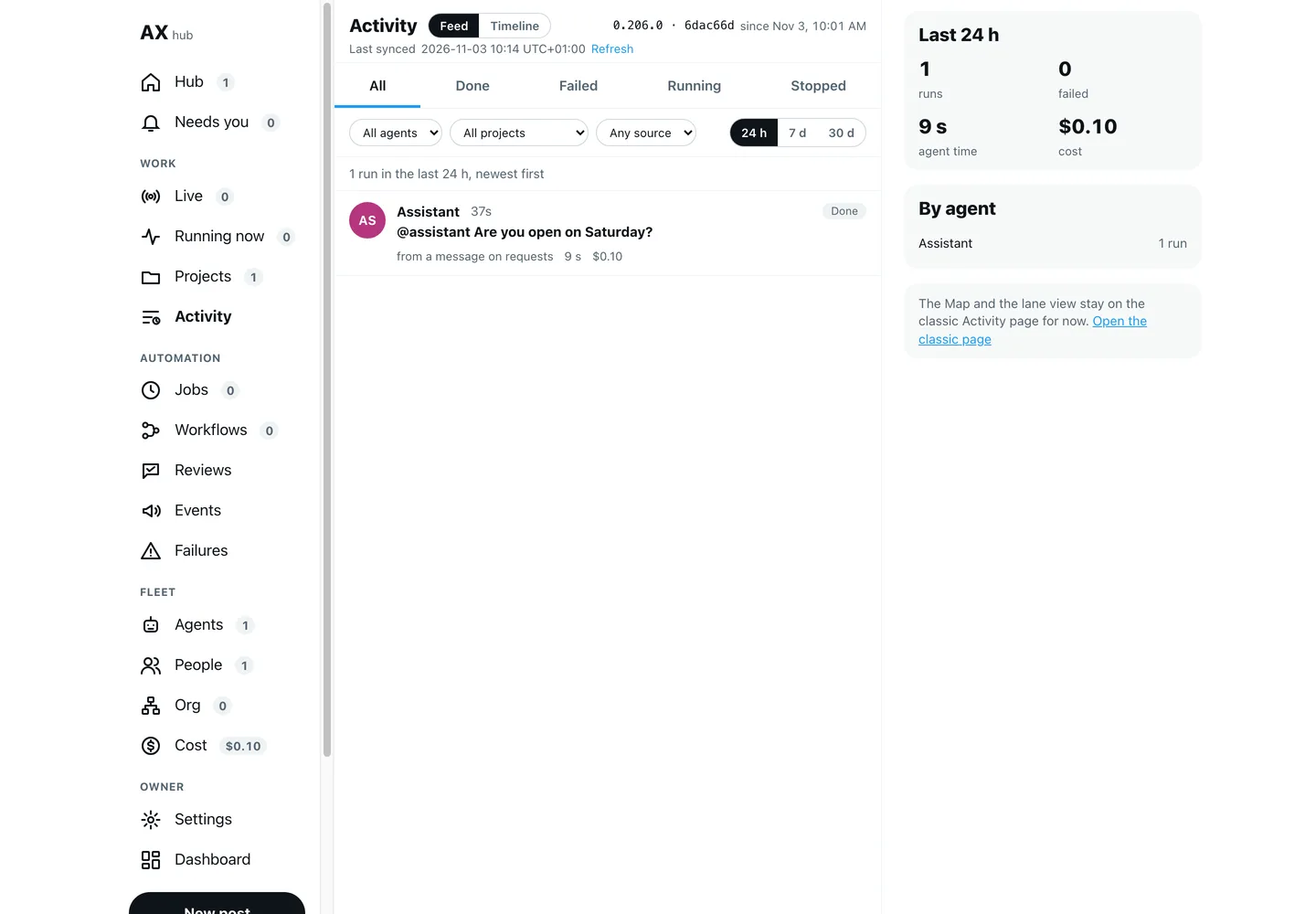
Ours showed 1 run in the last 24 h, newest first: Assistant, Done, the question, from a message on requests and 9 s.
- The tabs under the title filter by how a run ended: All, Done, Failed, Running, Stopped.
- The filters narrow it to one agent, one project or one source (jobs, workflows, Hub posts, messages).
- 24 h, 7 d, 30 d set how far back to look.
This is the page to open when someone says "the agent never answered me". If the run is here and Done, the agent did its part. If it is not here at all, the message never reached AgentX.
Timeline, next to Feed beside the title, opens the older Activity page, where runs are drawn as bars per agent. It also has a Map of how work passes from agent to agent, which is useful once you have more than one agent.
Step 8: See what needs you on Monitor
Monitor is still a page of the older dashboard, so it has its own look and is not in the Hub's menu. Open http://127.0.0.1:4202/monitor.
After each task finishes, AgentX has Claude Code review it and write down what is left to do. Monitor sorts those notes into Only you (needs a person), Agents can handle, In motion and Session briefings. The review uses the Claude Code account signed in on the computer that runs the daemon, the same one your agent uses.
The first time, our review failed. The strip at the top said 1 Review failed, and the briefing at the bottom showed this reason:
Review failed
[ { "code": "too_small", "minimum": 1, ... "path": [ "actions", 1, "minutes" ] } ]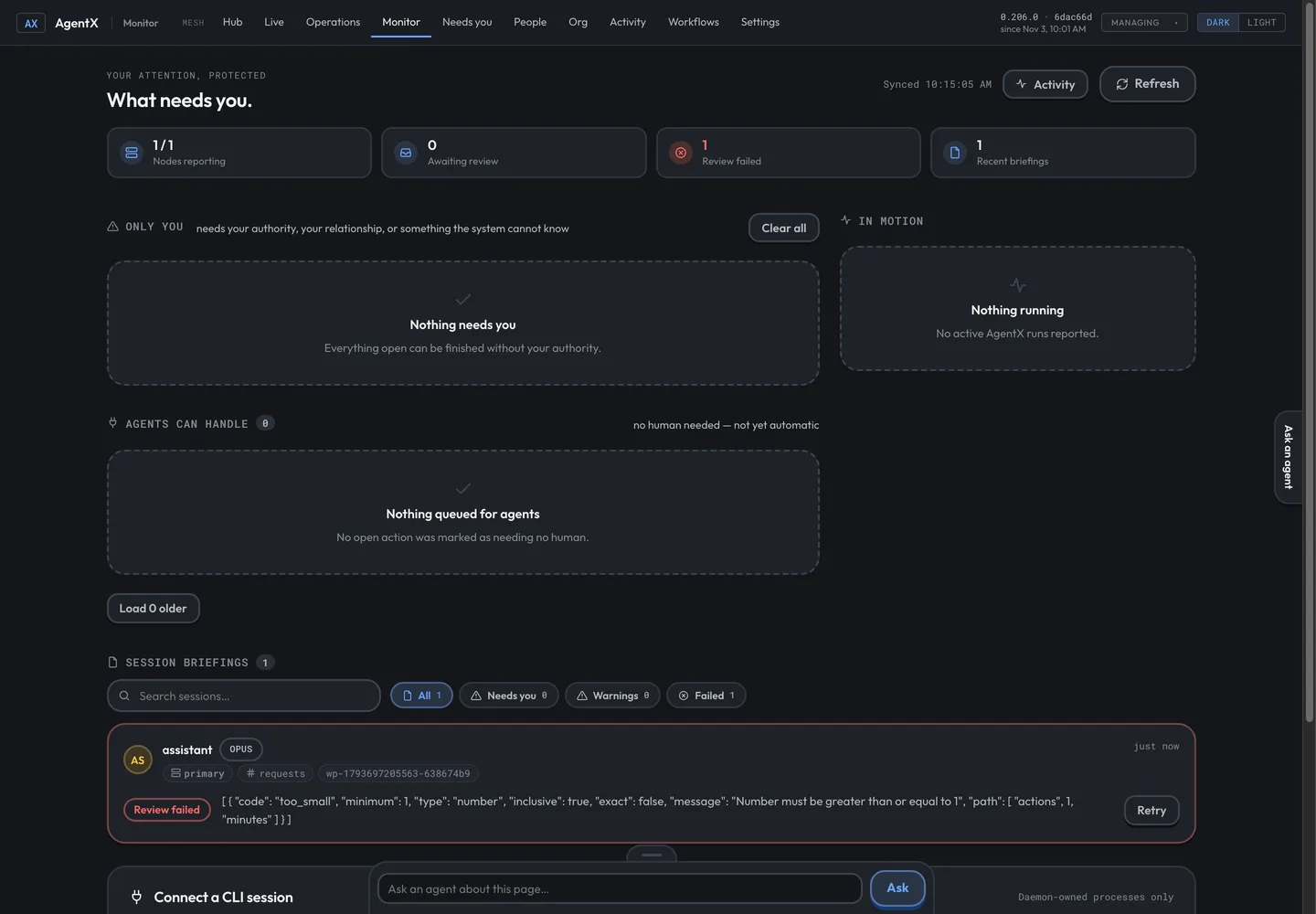
The reviewer wrote a time estimate of zero minutes for one action, and AgentX rejected its own reviewer's note. Nothing is wrong with your agent. Select Retry on the briefing. Ours worked on the first retry: Reviews failed went back to 0 and a card appeared under Only you.
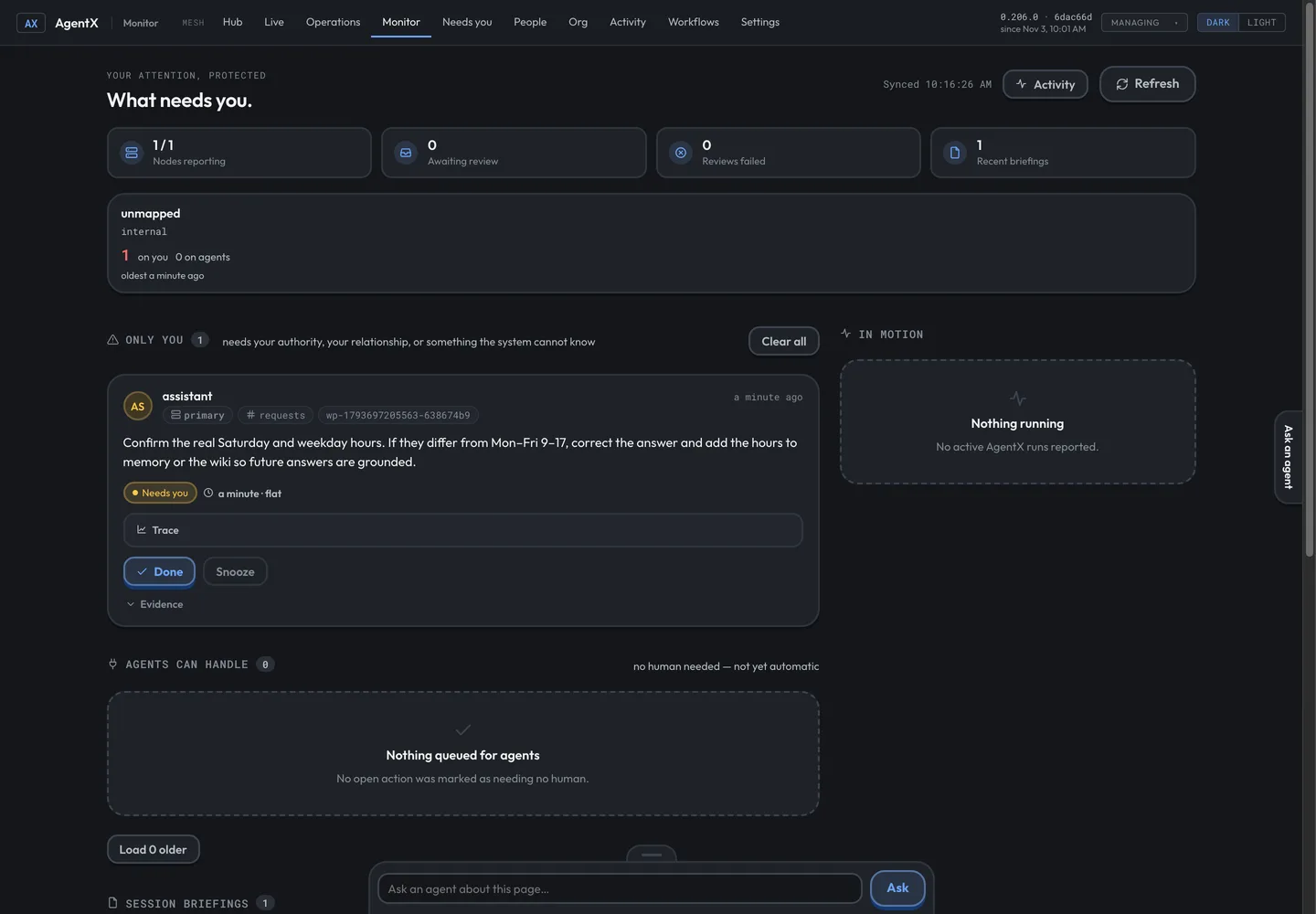
The reviewer had noticed that nothing showed where the agent's opening hours came from, and asked a person to confirm them:
Confirm the real Saturday and weekday hours. If they differ from Mon–Fri 9–17,
correct the answer and add the hours to memory or the wiki so future answers
are grounded.
That is the point of Monitor. It tells you what only a person can check. Here you know the hours are right, because you wrote them. Select Done. The card leaves the list, and it stayed gone after we reloaded the page. Snooze puts a card aside for later instead. Neither button does the work itself; they only keep the list tidy.
Check it worked
- The Hub shows your post with the agent's answer.
- Activity, with 24 h picked, lists the run as Done.
- Live shows Running now 0 and your computer under Machines.
- Monitor at
/monitorshows1 / 1under Nodes reporting, 0 under Reviews failed, and nothing left under Only you after you selected Done.
Troubleshooting
Not posted: Requests are off on this computer... Add "requests": { "enabled": true } to agentx.json, as in step 3.
The page does not load. The dashboard is not running. Start it with agentx board serve and keep that terminal open.
The page loads, but the version at the top right is missing or no machine shows on Live. The dashboard cannot reach the daemon. Run agentx daemon status, and start the daemon if it is stopped.
The task never shows on Live. It may already be over: short tasks finish in seconds. Look in Activity. If it is not there either, check the post on the Hub for an error.
Selecting a run in Activity opens a page with an empty conversation and a red HTTP 404 label. We saw this on 0.206.0 for a task posted on the Hub. The page itself says the run is finished and its chat lives where it came from. Read the answer on the Hub post instead.
Review failed on Monitor. Read the reason on the briefing. A validation error like the one in step 8 went away with Retry. If the reason is claude CLI not found on the daemon PATH, Claude Code is not installed for the daemon: install it and sign in by running claude once.
Monitor stays empty. Reviews only start after a task has finished, and some routine work is never reviewed. Check Activity to see whether the task finished.
Next in the series
Next comes a daily report on a schedule, so an agent does a job without you asking each time. Putting your agent on Telegram is part 4 and follows separately. Until then, the AgentX documentation is at github.com/anis-marrouchi/agentx.
Conclusion
You gave an agent a task from the dashboard, then followed it through every page that matters: the Hub for the question and the answer, Live while it ran, Activity once it was done, and Monitor for what only you could check. You also turned on requests and cleared a failed review, the two rough edges on this version.
If you want agents like this watched and looked after for your business, talk to us.