

Google Forms is the first thing a teacher tries when looking for an online quiz, and for good reason: completely free, works from the browser and the phone, and handles Arabic and right-to-left text with no configuration. This is a complete practical guide to building a self-grading quiz in it — followed, with the same honesty, by the four limits you will hit if your subject goes beyond multiple choice.
Building the quiz in Google Forms
1. Turn the form into a quiz
Open forms.google.com, create a new form, then in Settings enable "Make this a quiz". That switch is what later reveals answer keys and points — without it, the form stays an ordinary survey.
2. Add questions and pick their types
The types that fully auto-grade: multiple choice, checkboxes (for more than one correct answer), dropdown, and short answer by text matching. Paragraph questions always need manual marking.
3. Set the answer key and points
On each question click "Answer key", mark the correct answer and assign points. You can add feedback shown to the student after submission — separately for correct and incorrect answers, a teaching opportunity most people skip.
4. Configure submission settings
In Settings: restrict to one response per account (requires students to sign in), enable question shuffling to limit copying, and choose when grades are released — immediately on submission, or later after a manual review.
5. Share the link and review results
Copy the form link and send it to your students. Responses collect under the "Responses" tab with a per-question chart showing the most common wrong answers — the most useful screen in the whole tool for seeing where the class got lost. Grades export to Google Sheets in one click.
Those five steps genuinely give you a free online quiz that marks itself. For many subjects, that is entirely enough.
The four limits you will hit
1. No equation editor — at all
There is no built-in way to write a fraction, a root or an exponent in a question. The known workarounds — typing x^2 as plain text, or pasting the equation as an image from Word — do work, but they produce a question harder to read than the textbook, and images a screen reader cannot read for students who rely on one.
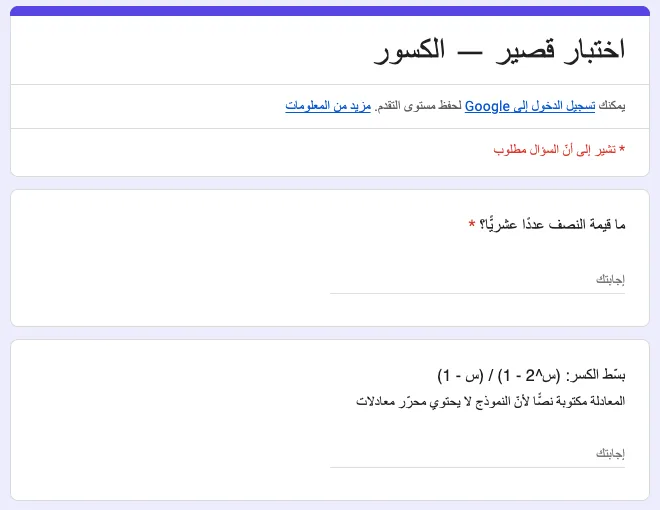 A real quiz we built in Google Forms: the equation is typed as plain text — this is the best it can do.
2. Text matching short-changes students in math
The short-answer question compares characters, not values: if the key is 0.5, an answer of 1/2 is marked wrong, and so is 0,5 with a decimal comma. The only partial fix is adding every expected spelling as an accepted answer — and you will always forget one.
3. No printable paper version
Printing the form from the browser outputs a web page with its buttons and colors, not an exam paper you can hand out. Anyone who needs both — a link for revision and a paper for the in-class test — writes the questions twice in two tools.
4. Questions are not systematically reusable
There is no concept of a question bank organized by curriculum chapters. Every quiz is an independent form; reusing last year's questions means copy-pasting form by form, and nothing connects a student's result on the chapter-three quiz to their progress across the whole course.
When to move to a tool built for teaching
If all your questions are multiple choice and true/false, stay in Google Forms with a clear conscience. But if you teach math or science, or need the printed paper alongside the link, we wrote a complete guide on creating an auto-graded online quiz — even for math — and we built Minbar to cross these four limits specifically: equations written by clicking, grading that compares mathematical value rather than spelling, a button that prints the same questions as a paper exercise sheet with your school's header, and a question bank organized by the chapters of your course.
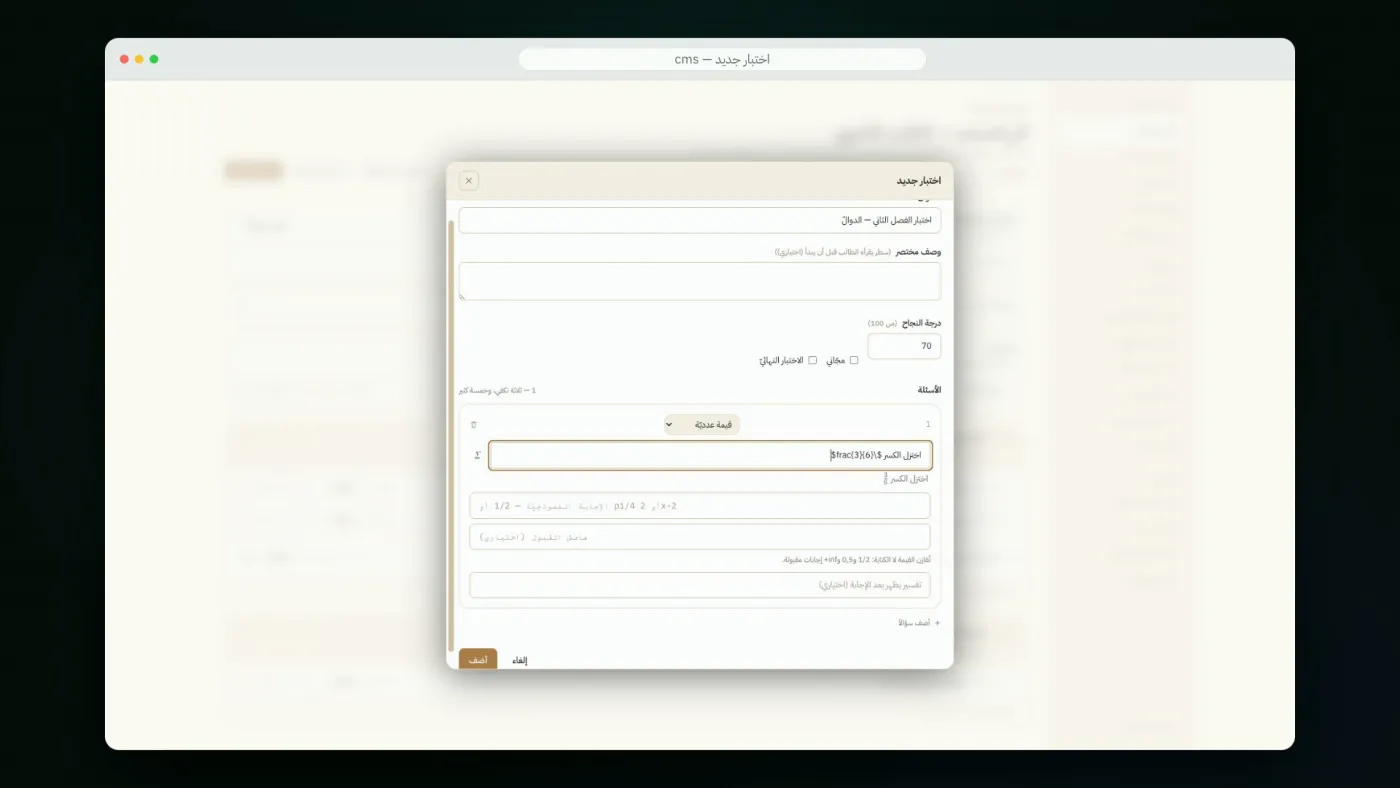 What Google Forms cannot do: a fraction inserted by clicking, typeset before the question is saved.
Try it as a student sees it in the demo math course, and if you want a platform under your own name for your courses and quizzes — with no commission on your lessons — write to us and we will set it up.