

Until now, your agent only worked when someone asked it something. In part 5 you gave it a task from the dashboard and followed it to the end.
A schedule removes the asking. You tell AgentX once what to do and when, and the agent does it at that time, every time, whether you are at your desk or not. In this part you set up the most common one: a short report every weekday morning.
This is part 6 of AgentX in practice, a series of short guides where each part gets one thing working.
What you get at the end
- A schedule called
daily-reportthat runs at 8:00 your time, Monday to Friday. - Proof that it works: a report the agent wrote from a test run, read without waiting for tomorrow.
- A value line on the job, so the dashboard shows why it runs and stops marking it look stale.
AgentX is part of Noqta's products program and it is still experimental. On this version the dashboard's schedule form gets the time zone wrong (see step 2), so this guide uses the terminal.
Prerequisites
- AgentX with one working agent, from part 3.
- AgentX 0.217.0 or later. Check with
agentx --version. To update, run the install command from part 2 again. - The daemon running (
agentx daemon statussaysrunning) and the dashboard (agentx board serve), as in part 5. - A terminal and a text editor.
How we ran it. As in the earlier parts, we ran everything in a clean, separate home folder on a Mac that already runs another AgentX, with the daemon on port 19021 and the dashboard on 19031. Yours will show the defaults, 18800 and 4202. Our computer is named my-laptop and its clock is on Tunis time, so the outputs say Africa/Tunis. Our agent was the starter agent Assistant (assistant); use your own agent's ID wherever you see assistant.
Step 1: Give the agent something to report on
A report needs a source. A schedule only sends the agent a message at a set time; the agent still has to know where to look. For this guide we put a small work log in the agent's own folder, agents/assistant/work-log.md:
# Work log

## 2026-11-09
- Sent the quote to the bakery client (3 pages).
- Fixed the contact form: messages with an accent in the name were rejected.
- Still open: the hosting renewal invoice has not been paid.
In real use this is whatever your team already keeps: a notes file, a folder of exports, a ticket list the agent can read. The agent works inside its own folder, so put the file there or tell it the full path.
Step 2: Choose when it runs
AgentX understands plain English times. Check how it reads yours before you save anything:
agentx schedule parse "weekdays at 8am" "weekdays at 8am"
→ 0 8 * * 1-5
→ At 08:00 AM, Monday through FridayThe second line is the same time written as a cron expression, the five-field format most schedulers use: minute, hour, day of month, month, day of week. 0 8 * * 1-5 means minute 0, hour 8, any day, any month, Monday to Friday.
Other phrases that work: every day at 8am, every monday at 10am, every 15 minutes, 1st of every month at noon. Only English is understood: tous les jours à 8h gives Couldn't parse.
Why not the dashboard? Settings › Schedules has an Add a schedule form. On 0.217.0 its label says the time is "in the machine's time zone" and its preview agreed: we typed 0 9 * * 1 and it showed 9:00 Tunis time. But the form saves the schedule without a time zone, and the daemon then runs it at 9:00 UTC, which was 10:00 for us. The terminal saves the time zone with the schedule, so what you read is what you get.
Step 3: Preview the schedule
Now write the full command, with --dry-run so nothing is saved yet:
agentx schedule "weekdays at 8am" --agent assistant --id daily-report \
  --do "Read work-log.md. Write a short report of yesterday in three lines: what was done, what is still open, and one thing to do first today." \
  --dry-run
✓ would add cron daily-report
Schedule: 0 8 * * 1-5 (At 08:00 AM, Monday through Friday, Africa/Tunis)
Agent: assistant
On error: logWhat each part does:
--agentis the agent that does the work.--idis the schedule's name. Use lowercase letters, digits and-. Without it, AgentX makes one up from the time and the agent (ours would have beenweekdays-assistant).--dois the message the agent gets each time. Say exactly what to read and what the report should look like. "Three lines" gets you three lines; "summarize" gets you anything.--dry-runprints what would be saved and stops.
Read the Schedule: line. The name at the end is the time zone. Without --timezone, AgentX uses your computer's. If the computer that runs AgentX is on another clock than you, for example a server, add your zone:
agentx schedule "weekdays at 8am" --agent assistant --id daily-report \
  --do "..." --timezone Asia/Riyadh --dry-run
✓ would add cron daily-report
Schedule: 0 8 * * 1-5 (At 08:00 AM, Monday through Friday, Asia/Riyadh)Use the full name of the zone, like Asia/Riyadh, Africa/Tunis or Europe/Paris. A short name like Tunis is accepted here but fails later (see Troubleshooting).
Step 4: Save it
Run the same command again without --dry-run:
  ✓ Added cron daily-report
    Schedule: 0 8 * * 1-5  (At 08:00 AM, Monday through Friday, Africa/Tunis)
    Agent: assistant
    On error: log
    Daemon hot-reloaded.
Daemon hot-reloaded. means the running daemon picked up the new schedule straight away. No restart is needed. The schedule is saved in agentx.json under crons:
"daily-report": {
  "enabled": true,
  "schedule": "0 8 * * 1-5",
  "timezone": "Africa/Tunis",
  "agent": "assistant",
  "prompt": "Read work-log.md. Write a short report of yesterday in three lines: ...",
  "timeout": 600,
  "onError": ["log"]
}
List your schedules to check:
agentx schedule list ● daily-report 0 8 * * 1-5 → assistant
At 08:00 AM, Monday through Friday (Africa/Tunis)The dot ● means it is on. A schedule that is off shows ○.
Step 5: Test it without waiting for tomorrow
AgentX 0.217.0 has no "run now" button for a schedule. The quick way to test one is a copy that runs every two minutes, with the same agent and the same message:
agentx schedule "every 2 minutes" --agent assistant --id report-test \
  --do "Read work-log.md. Write a short report of yesterday in three lines: what was done, what is still open, and one thing to do first today."
✓ Added cron report-test
Schedule: */2 * * * * (Every 2 minutes, Africa/Tunis)
Agent: assistant
On error: log
Daemon hot-reloaded.Wait for the next even minute. Our first run started on the minute and finished 13 seconds later. Then remove the copy straight away, or it keeps running every two minutes and uses your model account each time:
agentx schedule remove report-test ✓ report-test removed
Daemon hot-reloaded.Step 6: Read the report
Each run is kept as a small file in your AgentX folder, under .agentx/cron/runs/<schedule name>/, one file per run, named by its start time. Open the newest one:
ls -t .agentx/cron/runs/report-test | head -12026-11-10T09-08-00-002Z.jsonThe report is in "response", and "success": true says the run went well. Ours read:
**Yesterday (2026-11-09):**
- **Done:** Sent a 3-page quote to the bakery client; fixed the contact form bug that rejected names with accents.
- **Still open:** Hosting renewal invoice has not been paid.
- **First thing today:** Follow up on the hosting renewal invoice to avoid a service interruption.
Everything in it comes from the work log in step 1, so you can check each line. If a line is not in the source, make the message stricter, for example "use only what is in work-log.md".
The dashboard tells you whether a run worked, not what it said. Open http://127.0.0.1:4202/mesh, select the Operations tab, and select your schedule under Routines:
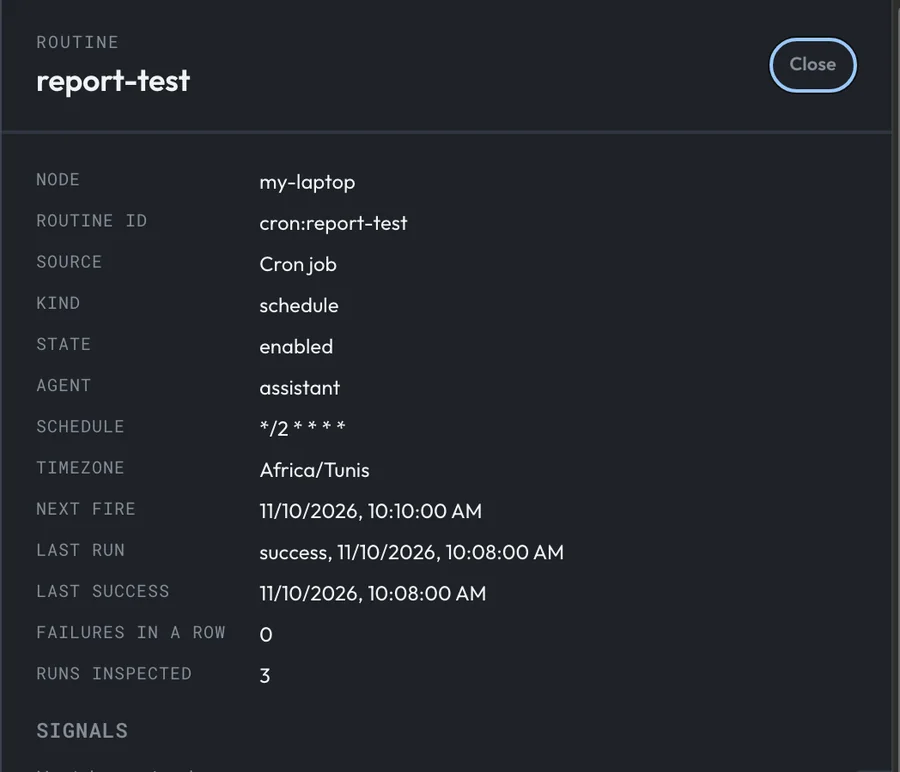
Last run, Failures in a row and Next fire are the three lines to read. Activity also lists each run as from a job, but on 0.217.0 its Open the run page shows an empty conversation marked HTTP 404, as in part 5. The file is where the text is.
To have the report sent to you instead, a schedule can post each answer to a chat such as Telegram, with --notify. That needs a connected channel, which is part 4 of this series, so we did not test it here.
Step 7: Give the job a value line
Open Jobs in the dashboard menu. Each recurring job is listed with its schedule, its last seven runs as squares and its state. On a fresh schedule, the state is look stale, even before it has run:
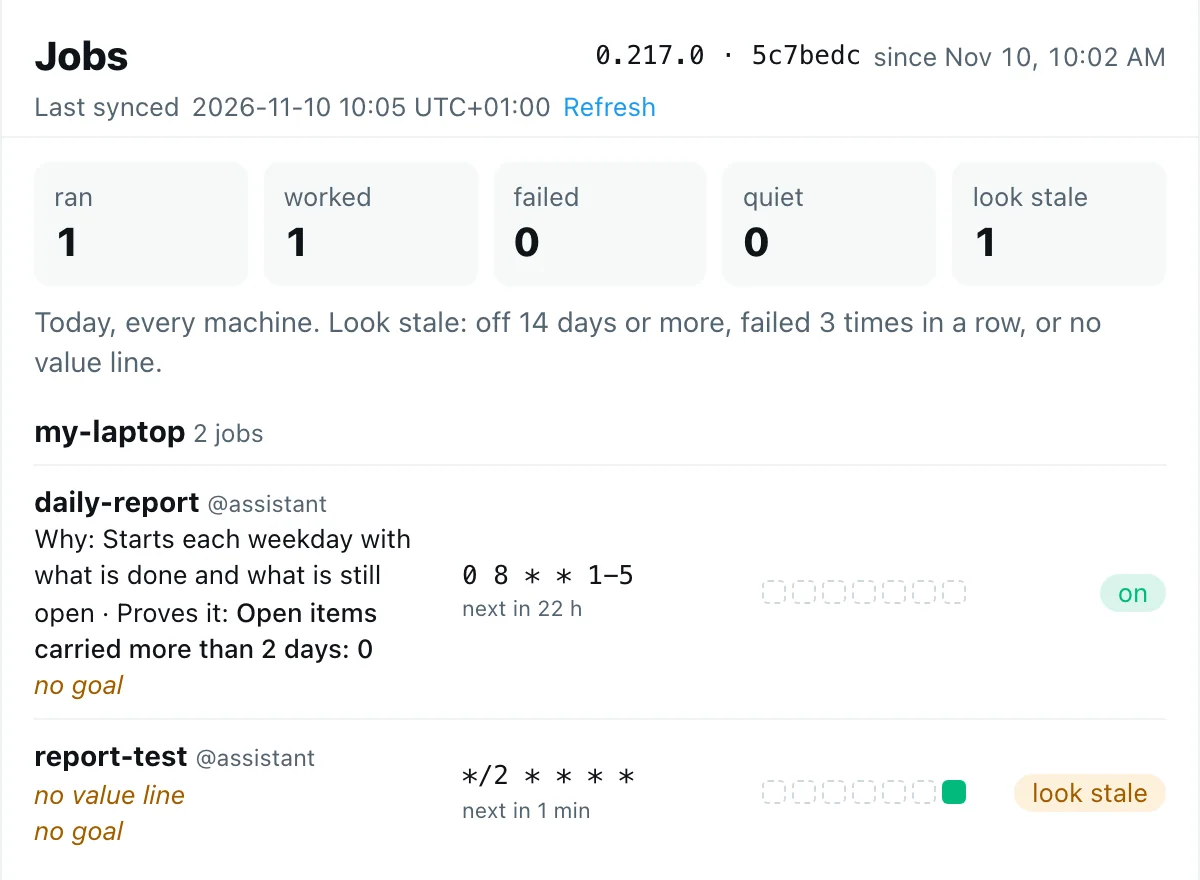
Look stale means one of three things: the job has been off for 14 days or more, it failed three times in a row, or it has no value line. A value line says why the job runs and which number proves it is worth running. AgentX does not measure the number; it is there so that whoever reads the list can ask "is this still worth it?".
The terminal command has no option for it, so add it in agentx.json. Do this last: running agentx schedule again with the same --id replaces the whole entry and drops the value line. Find daily-report under crons and add a value block:
"daily-report": {
  "enabled": true,
  "schedule": "0 8 * * 1-5",
  "timezone": "Africa/Tunis",
  "agent": "assistant",
  "prompt": "Read work-log.md. ...",
  "timeout": 600,
  "onError": ["log"],
  "value": {
    "why": "Starts each weekday with what is done and what is still open",
    "metric": "Open items carried more than 2 days: 0"
  }
}
Save the file. The daemon reads it by itself. On the Jobs page, daily-report now shows the Why and Proves it lines and its state is on. The no goal label underneath is a separate, optional link to a goal record; it does not make the job look stale.
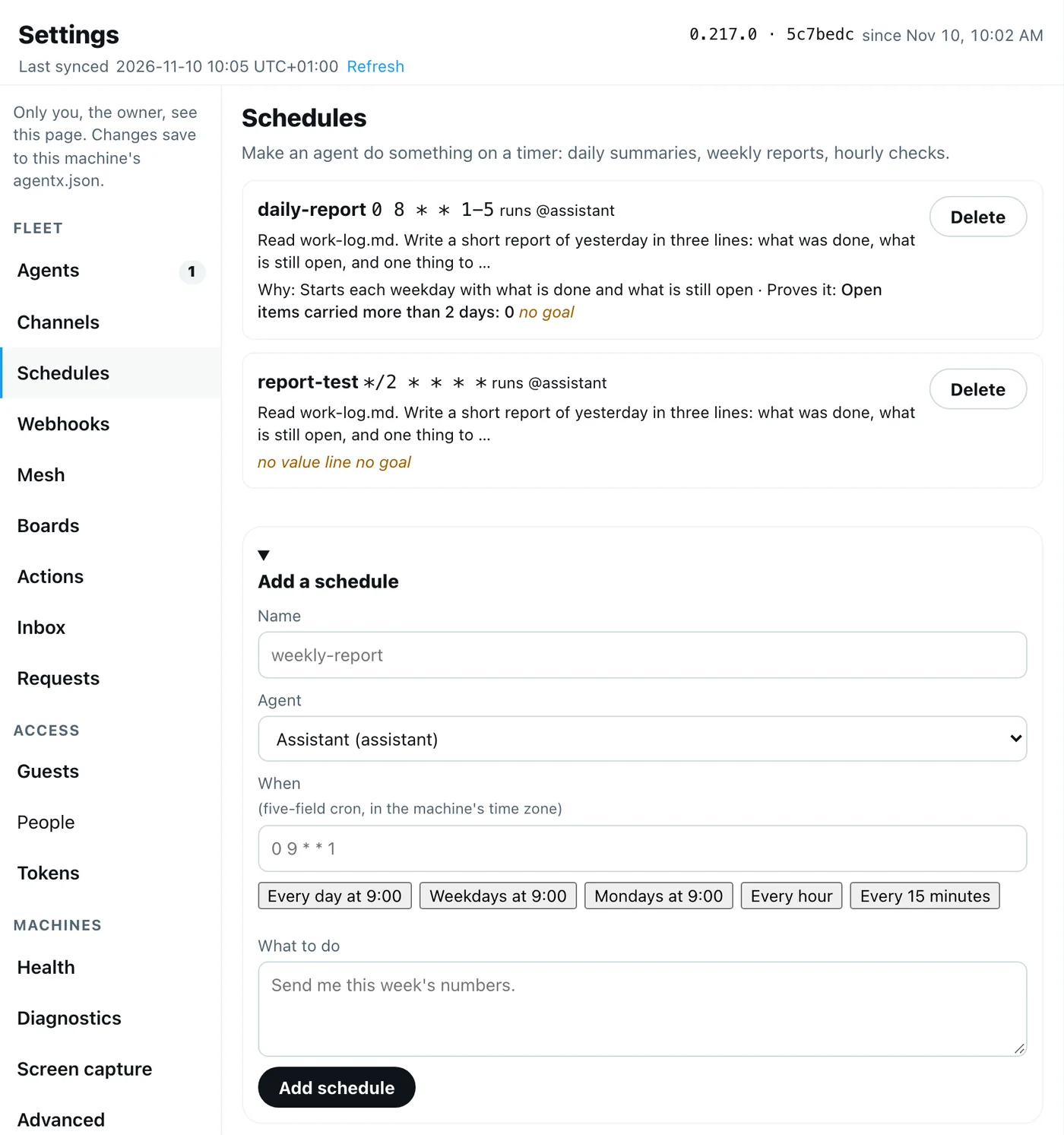
Settings › Schedules shows the same jobs with their message and value line, and a Delete button for each:
Check it worked
agentx schedule listshows● daily-reportwithMonday through Fridayand your time zone in brackets.report-testis gone from the list..agentx/cron/runs/report-test/holds at least one run with"success": trueand a report you can check against your source.- Jobs in the dashboard shows
daily-reportas on, with its Why and Proves it lines and next in the right number of hours. - The next working day after 8:00,
.agentx/cron/runs/daily-report/has its first file.
Troubleshooting
Couldn't parse: "..." The time is not in a form AgentX knows. Use English, and one of the forms the message suggests, such as every morning at 9 or daily at 9:30am. Test with agentx schedule parse first.
Agent "reporter" not found in agentx.json followed by Available: assistant. Use one of the IDs on the second line.
The schedule is in the list but never runs. Check the daemon's log for Failed to schedule. We saw Failed to schedule "tz-test": Invalid time zone specified: Tunis: the command accepted the short zone name, but the daemon refused it. Run the command again with the same --id and a full name such as Africa/Tunis. The new entry replaces the old one entirely, with no warning, so add the value line from step 7 again afterwards. Also check that the daemon runs (agentx daemon status) and that the schedule shows ● (if not, agentx schedule on daily-report).
It ran an hour early or late. The schedule has the wrong time zone, or none. Look at the name in brackets in agentx schedule list. A schedule made in the dashboard form has no time zone and runs on UTC. Create it again from the terminal.
The test copy keeps running. Remove it: agentx schedule remove report-test. To pause a schedule without deleting it, use agentx schedule off <name> and agentx schedule on <name>.
The name was accepted with spaces or capitals. 0.217.0 accepted --id "Bad Name". Use lowercase and - anyway: other commands and the dashboard address schedules by this name.
The run failed. Open the newest file in .agentx/cron/runs/<name>/: "success": false comes with the error. A model sign-in problem shows the same way as in part 3.
Next in the series
Next comes your first workflow, where several steps run one after the other instead of one message. Putting your agent on Telegram is part 4 and follows separately; that is also where a schedule learns to send its report to your phone. Until then, the AgentX documentation is at github.com/anis-marrouchi/agentx.
Conclusion
You gave an agent a job it now does on its own: every weekday at 8:00 your time, it reads the work log and writes three lines. You checked the time zone before saving, tested the job with a two-minute copy instead of waiting a day, read the real report, and gave the job a value line so the dashboard can tell you if it ever stops being worth running.
If you want reports like this set up and looked after for your business, talk to us.