

So far, each job you gave your agent was one message: a question in part 5, a report on a timer in part 6.
A workflow is a job written down as steps. Something starts it, the steps run in order, and each step can use what the step before it produced. In this part you build the smallest one that does real work: you hand it the notes from a meeting, an agent turns them into a list of action items, and the run ends.
This is part 7 of AgentX in practice, a series of short guides where each part gets one thing working.
What you get at the end
- A workflow called
meeting-actionswith three steps: start (you start it), reply (an agent reads the notes) and done. - One run of it, with an answer you can check line by line against the notes you gave it.
- The same workflow open on the canvas, the dashboard's drawing of the steps, where you can change it without touching the file.
AgentX is part of Noqta's products program and it is still experimental. On this version the workflow template has one wrong line, and the agent never sees your text unless you fix it. Step 3 shows how.
Prerequisites
- AgentX with one working agent, from part 3.
- AgentX 0.227.1 or later. Check with
agentx --version. To update, run the install command from part 2 again. - The dashboard (
agentx board serve), as in part 5. - A terminal and a text editor.
How we ran it. As in the earlier parts, we ran everything in a clean, separate home folder on a Mac that already runs another AgentX, with the daemon on port 19021 and the dashboard on 19031. Yours will show the defaults, 18800 and 4202. Because our daemon was not on the default port, our run command carries --daemon http://127.0.0.1:19021. On a normal install, leave that part out. Our agent was the starter agent Assistant (assistant); use your own agent's ID wherever you see assistant.
Step 1: Turn workflows on
Workflows are off on a fresh install. Open agentx.json in your AgentX folder and add a workflows block at the top level:
"workflows": {
  "enabled": true
}
We added this before starting the daemon. If yours is already running, stop it and start it again so it reads the change. When the daemon starts, its log says:
[agentx] Workflows: enabled (1 definition loaded from .agentx/workflows, editor=edit, cron=0, hook=0, poll=0)Step 2: Start from a template
You do not need to write a workflow from nothing. AgentX has templates:
agentx workflow templates linear Linear
Trigger → Agent → End. Smallest workflow that runs.
branching Branching
Classify, then route on the result via a branch node.
extract Structured extraction
Pull typed fields from free-form text via extract.structured.
retry Retry + fallback
Per-node retry policy with a branch fallback path.
release-follow-up Release follow-up
Deploy, check it is live, tell the client (with your approval). Followed to the end; one summary for you.Linear is the one for a first workflow. Create yours from it, with your agent and a title:
agentx workflow init meeting-actions --agent assistant --title "Meeting notes to actions" ✓ scaffolded /private/tmp/axhowto07.QblZ/work/.agentx/workflows/meeting-actions.yaml
template: linear
Next:
1. edit /private/tmp/axhowto07.QblZ/work/.agentx/workflows/meeting-actions.yaml
2. agentx workflow validate /private/tmp/axhowto07.QblZ/work/.agentx/workflows/meeting-actions.yaml
3. agentx workflow run meeting-actions --watchmeeting-actions is the workflow's ID, its short name: lowercase letters, digits, - and _. The file lands in .agentx/workflows/ inside your AgentX folder, which is where the daemon looks for workflows.
Step 3: Write what the agent should do, and fix the input line
Open .agentx/workflows/meeting-actions.yaml. Without its comments, the template looks like this:
id: meeting-actions
version: 2
title: Meeting notes to actions

flow:
  - start
  - reply
  - done

nodes:
  - id: start
    type: trigger.manual
    config: {}

  - id: reply
    type: agent
    config:
      agentId: assistant
      prompt: |
        The user said: {{trigger.payload.text}}
        Reply concisely.

  - id: done
    type: end
    config:
      status: completed
Read it from the top:
flowlists the steps in the order they run. Each name is theidof a step undernodes.startis atrigger.manualstep: the workflow starts when you start it.replyis anagentstep: it sendspromptto the agent named inagentIdand keeps the answer.doneis anendstep: the run closes ascompleted.
Change the prompt so the agent knows its job. Be exact about the shape of the answer you want:
      prompt: |
        Here are notes from a meeting:
        {{start.text}}
        List the action items as a numbered list. For each one, give
        who does it and by when, if the notes say so. Nothing else.
Look at the second line. The template wrote {{trigger.payload.text}}, and we changed it to {{start.text}}. This matters. A {{...}} in a prompt is filled in from what earlier steps produced, and each step's result is filed under that step's ID. The text you hand to the workflow is filed under start, so {{start.text}} finds it. Nothing is filed under trigger, so on 0.227.1 the template's line is replaced by nothing at all, without any error. Our first run, with the template's line, came back with:
No meeting notes were included in your message. Please paste the notes and I'll extract the action items.The rule to remember: {{<step id>.<field>}}. If your trigger step is called start, the text is {{start.text}}; a later step reads the agent's answer as {{reply.reply}}.
Check the file before you use it:
agentx workflow validate .agentx/workflows/meeting-actions.yaml ✓ meeting-actions — validvalid means the file has the right shape. It does not check that {{...}} names a real step: our file with the wrong line was valid too.
Step 4: Run it
Give the workflow its input as JSON with --input. The field name, text, is the one your prompt reads in {{start.text}}:
agentx workflow run meeting-actions --watch --input '{"text":"Weekly call, 16 Nov. Sara will send the new price list to the shop by Thursday. Omar checks the delivery dates with the supplier. We meet again next Monday."}' ✓ run started: 4b278bdc-8b29-4327-ab34-5ebc58050352
in-flight (node)
ok (node) 0ms
run finished: completed
full traces: http://127.0.0.1:19021/traces?workflowRunId=4b278bdc-8b29-4327-ab34-5ebc58050352--watch follows the run until it ends. run finished: completed is the line that matters. The step lines read (node) instead of the step names on this version, and the time shown is not the agent's: the agent itself took a few seconds.
We changed the prompt while the daemon was running, and the second run used the new prompt. We did not restart anything.
To see every run of the workflow:
agentx workflow runs meeting-actions 4b278bdc meeting-actions ∅ completed
entity: manual:manual-mwkgufzr
home: mac
updated: 2026-11-17T09:04:41.930Z
last: done (ok)
940939aa meeting-actions ∅ completed
entity: manual:manual-mwkgt2lf
home: mac
updated: 2026-11-17T09:03:25.010Z
last: done (ok)
2 runs.The older run, 940939aa, is the one with the template's line from step 3: it completed too. A run that ends well can still have the wrong answer, which is why step 5 reads it.
Step 5: Read the answer
The terminal tells you the run worked, not what the agent wrote. Each run is kept as a file in .agentx/workflows/_runs/, one line per step, and the agent's answer is in the last line. This reads it from the newest run (Node is already on your computer, since AgentX needs it):
node -e 'const fs=require("fs"),d=".agentx/workflows/_runs/";const f=fs.readdirSync(d).map(n=>d+n).sort((a,b)=>fs.statSync(b).mtimeMs-fs.statSync(a).mtimeMs)[0];const last=JSON.parse(fs.readFileSync(f,"utf8").trim().split("\n").pop());console.log(last.context.reply.reply)'1. Sara sends the new price list to the shop — by Thursday.
2. Omar checks delivery dates with the supplier — no deadline given.
3. Team meets again — next Monday (23 Nov).Check it against the notes: three items, the right names, and "no deadline given" where the notes gave none. That is the point of a precise prompt. reply.reply follows the same rule as step 3: the step ID, then the field.
Step 6: See it on the dashboard
Open the dashboard (http://127.0.0.1:4202) and select Workflows in the menu, under Automation. Select the workflow's name to open its last run:
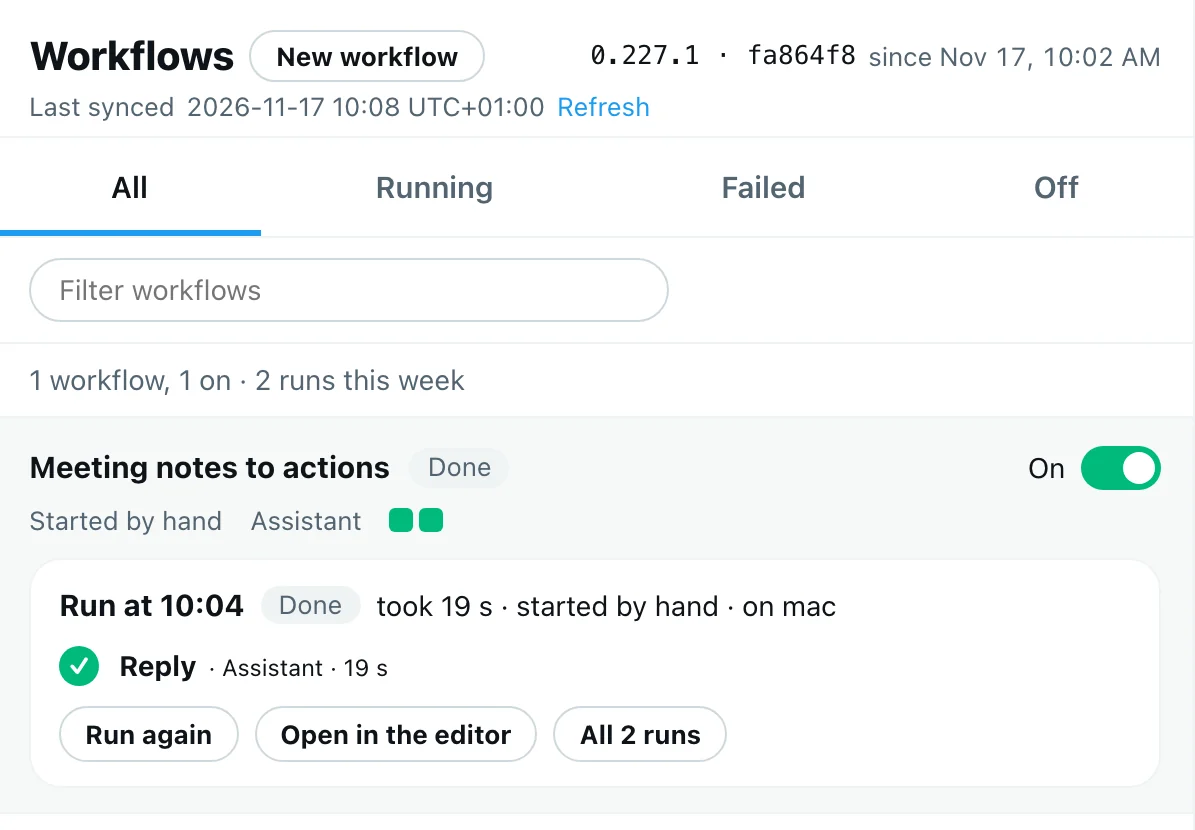
The row tells you what starts the workflow (Started by hand), which agent works in it, and one square per run: green finished, red failed. The run underneath lists each step with a tick. Run again starts it once more with the same input. All 2 runs opens the full history, where each step's output shows its first line only; the full answer is in the file from step 5.
Select Open in the editor, then the reply box:
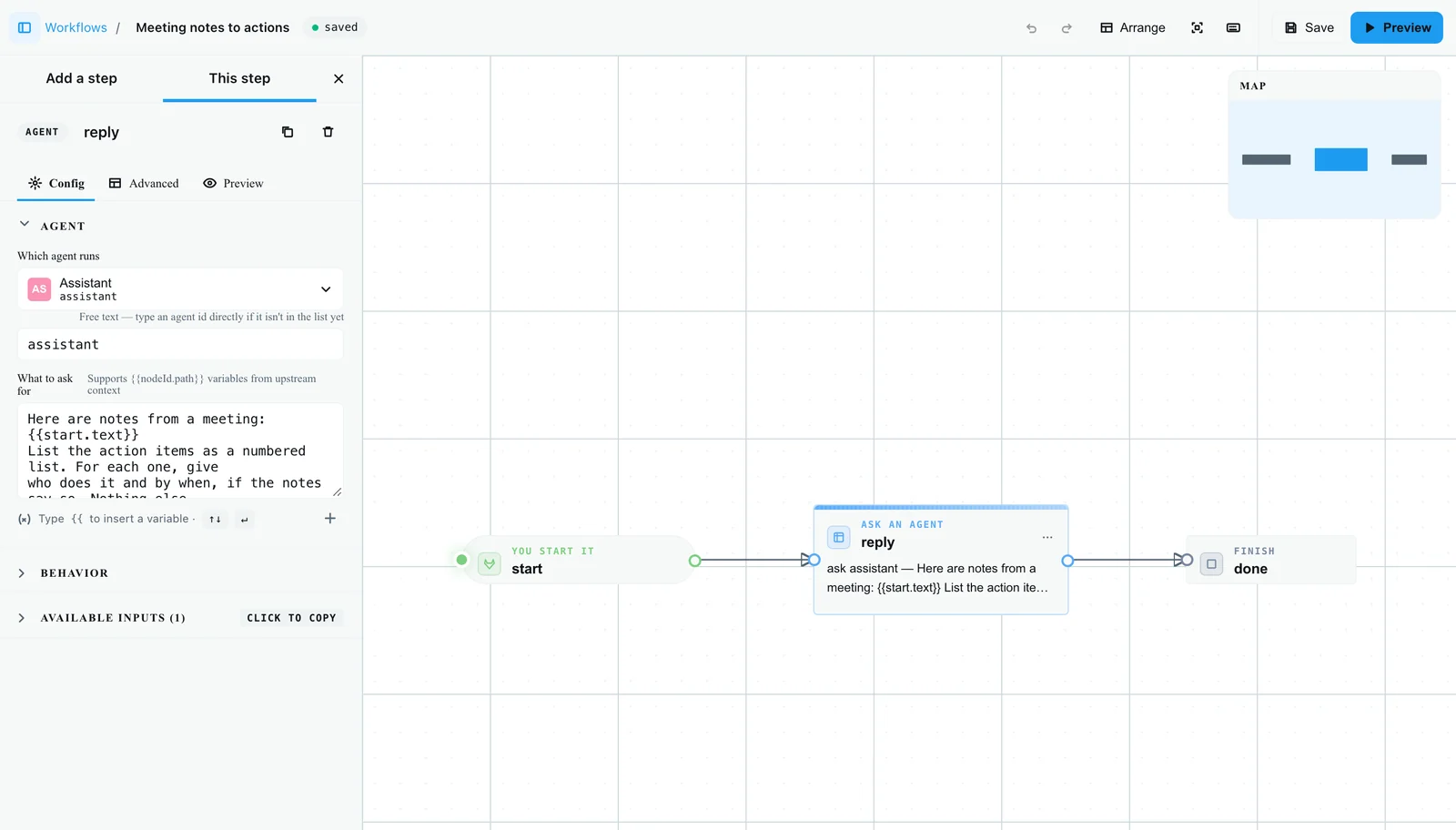
This is the same file, drawn as boxes. The side menu shows the selected step: its agent and its prompt, with {{start.text}} in it. Above the prompt, the editor states the rule from step 3: "Supports {{nodeId.path}} variables from upstream context". The status next to the title reads saved. According to the AgentX docs, changing a step here and selecting Save writes only that change back to the file; we only looked, and did not save from the editor in this guide.
Check it worked
agentx workflow validate .agentx/workflows/meeting-actions.yamlprintsvalid.agentx workflow run ... --watchends withrun finished: completed.- The answer from step 5 lists the action items from your notes. If it says no notes were included, see step 3.
- Workflows on the dashboard shows Meeting notes to actions as Done and On, with a green square for each run.
Troubleshooting
The agent answers as if it got no text. The prompt reads a field that does not exist, so it is replaced by nothing. Use {{<step id>.<field>}}: with the template, that is {{start.text}}, not {{trigger.payload.text}}. And check that the field in --input has the same name (text).
request to daemon failed: fetch failed. The daemon is not running, or not on the default port. Check with agentx daemon status. If your daemon uses another port, add --daemon http://127.0.0.1:<port> to agentx workflow run. This command does not read the port from agentx.json.
The workflow does not run, or the dashboard has no runs. Check "workflows": { "enabled": true } in agentx.json and that the file is in .agentx/workflows/. Then stop and start the daemon.
Which agent ID to use. agentId must be one of your agents. agentx agent list shows them; ours printed assistant — Assistant (claude-code).
agentx workflow list says trigger: ?. On 0.227.1 it does for this workflow too, even though the trigger works. The dashboard says Started by hand, which is right.
Next in the series
Next comes running Claude Code as an AgentX agent. From here, a workflow can grow: a step that sends the list to a chat, a choice between two paths, or a pause for your approval. Putting your agent on Telegram is part 4 and follows separately. Until then, the AgentX documentation is at github.com/anis-marrouchi/agentx.
Conclusion
You built a workflow in three steps: one that you start, one where an agent works, and one that closes the run. You started it from a template, fixed the line that would have hidden your notes from the agent, ran it with real input, read the answer and checked it against the source, and opened the same workflow on the canvas. Every larger workflow is built the same way, one step at a time, each step reading the one before it by its ID.
If you want workflows like this built for your business, talk to us.